ZeroIRC 2.0 Monte Carlo
Review of the new version – coming soon
Full review of the new version of the ZeroIRC app
Upon launching the app, users are greeted by a completely redesigned interface. It is this updated interface and its functionality that we will be discussing next.
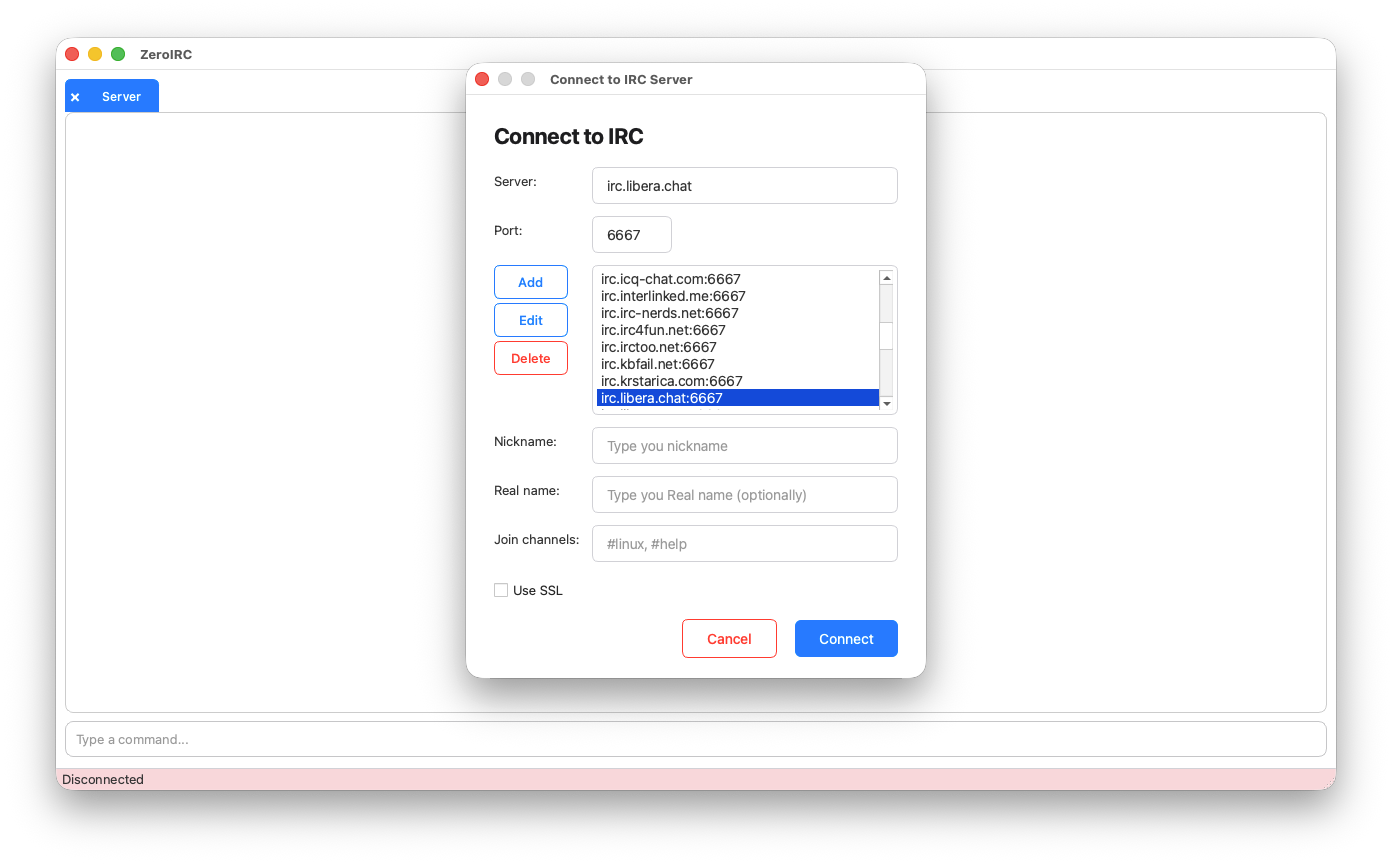
Upon launching the app, users are greeted by a classic IRC server connection window with the ability to edit, add, and delete IRC servers.
We have also added a status bar that displays the IRC server connection status in real time, which is very convenient and intuitively clear for the user in case of connection drops.
When actively connected, the status bar background is highlighted in a pale green, when disconnected, it is highlighted in a pale red.
Visually, this is subtle and unobtrusive, yet it greatly enhances the user's awareness of the connection status.
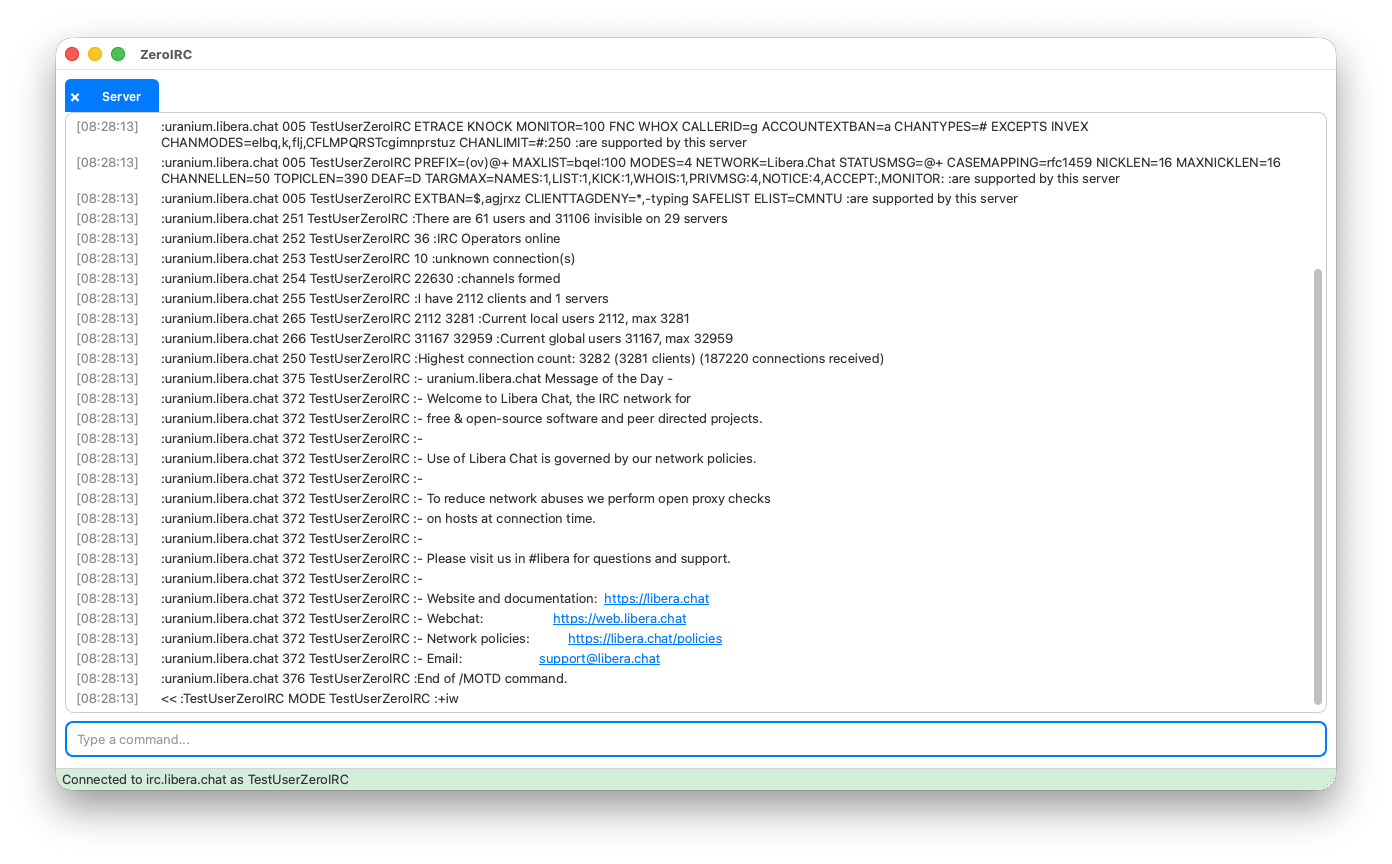
Example of the Status Bar when connected to an IRC server.
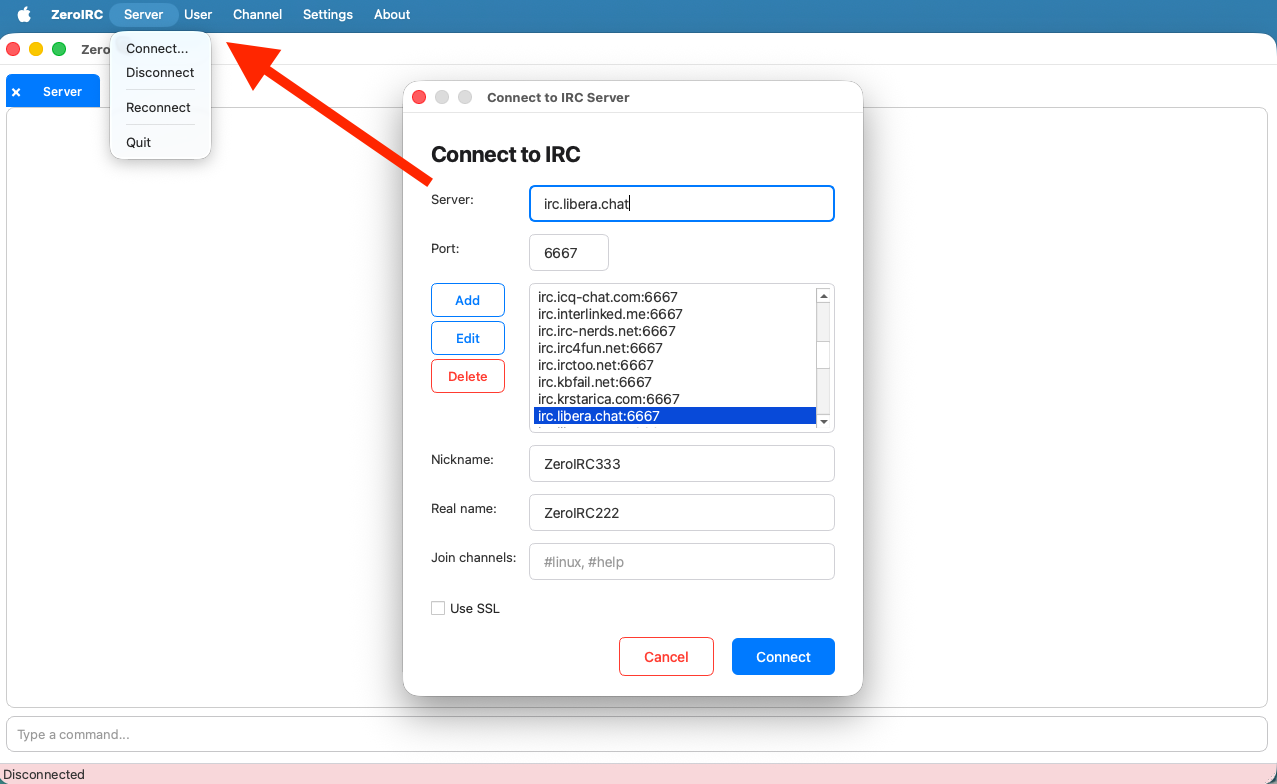
The main menu of the ZeroIRC app has been completely redesigned and improved. The menu has become intuitive and user-friendly.
Let's move on to reviewing the functionality of the IRC server connection window. The new functionality now allows you to add, edit, and delete IRC servers, as well as add IRC servers to favorites for quicker access.
Let's take a closer look at each feature...
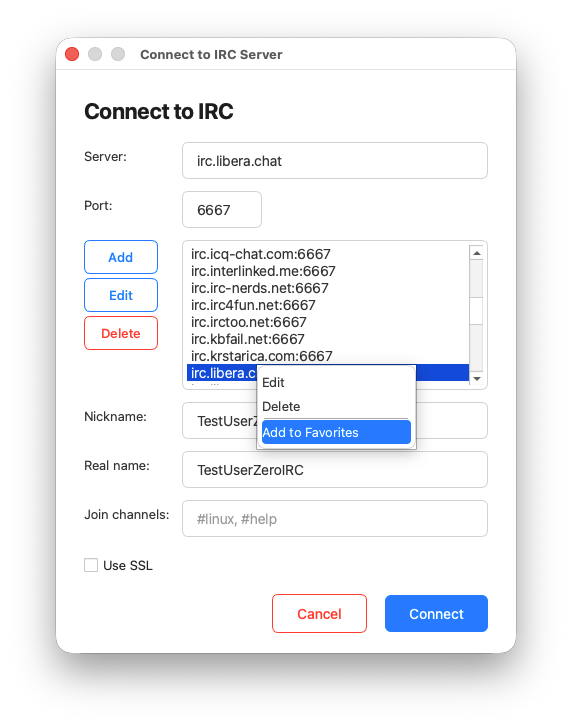
Adding an IRC server to favorites.
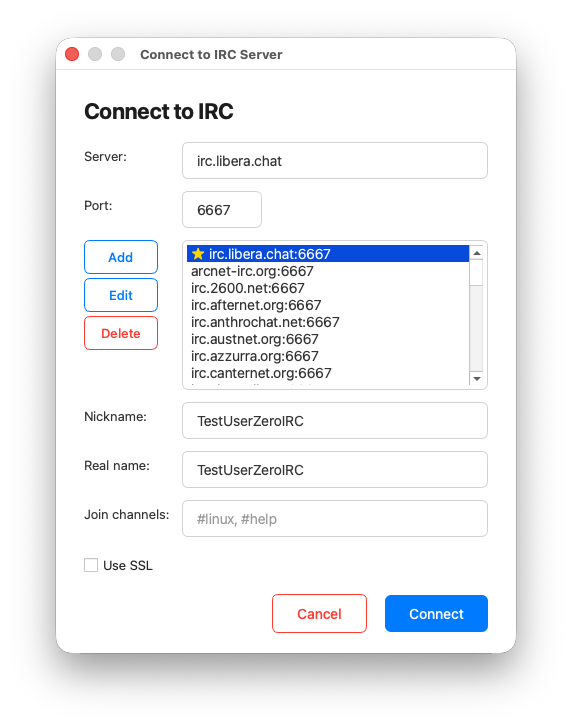
After adding an IRC server to favorites, the server moves to the top of the server list and is displayed with a star.
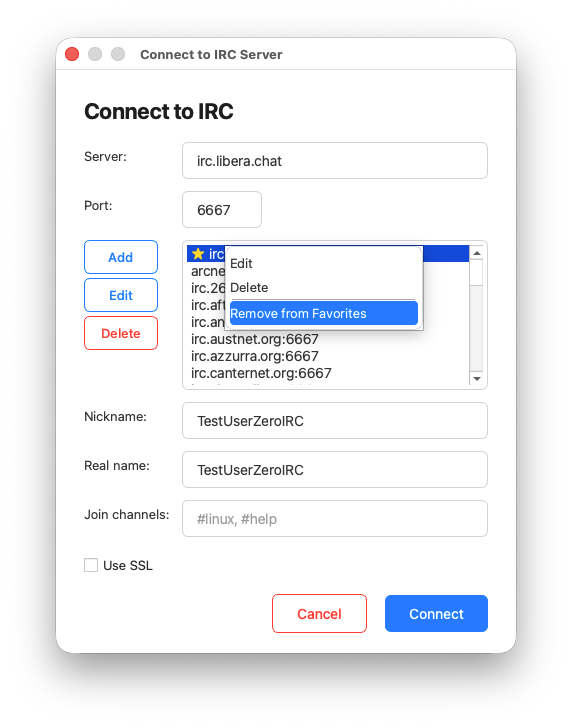
Removing a server from favorites is done in the same way as adding it — via the context menu.
Moving on to the functionality of adding a connection to a new IRC server... In the Connect to IRC Server window, click the Add button. In the Add IRC Server window that opens, the user can enter the server address, connection port, nickname, alternate nickname (if the primary nickname is taken), real name, select an authentication method (NickServ by default), enter the connection password (for registered users), add favorite channels for auto-join, and choose the encoding.
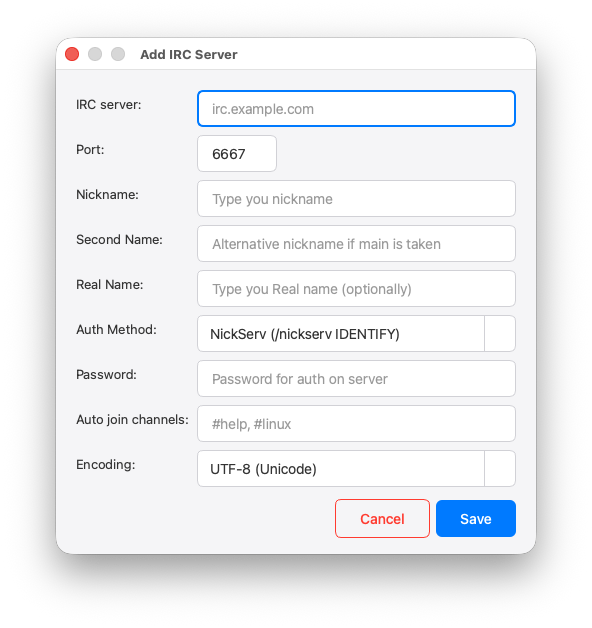
After entering all the server connection details, click the Save button. These settings are saved globally in the app and are inherited in the main Connect to IRC Server window.
Let's take a look at the functionality for editing server connection settings. In the Connect to IRC Server window, click the Edit button in the interface. A window will appear, similar to the Add Server window, but with the fields pre-filled with the existing data.
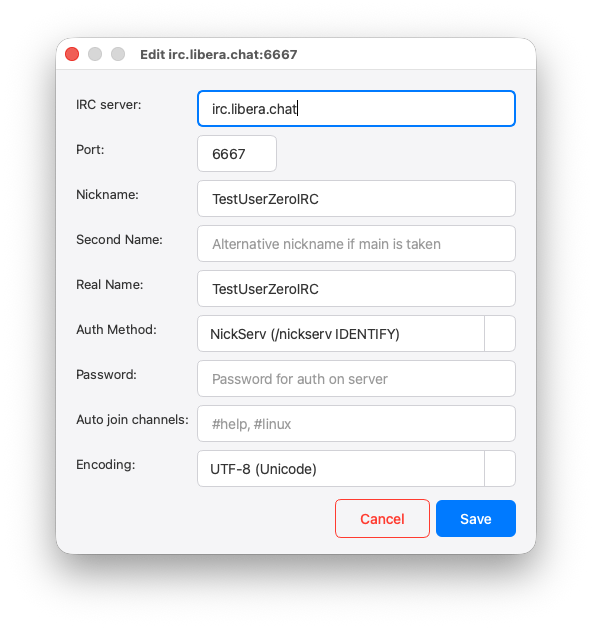
Once the user has entered all the data, clicking the Save button saves the settings globally and displays them in the Connect to IRC Server window.
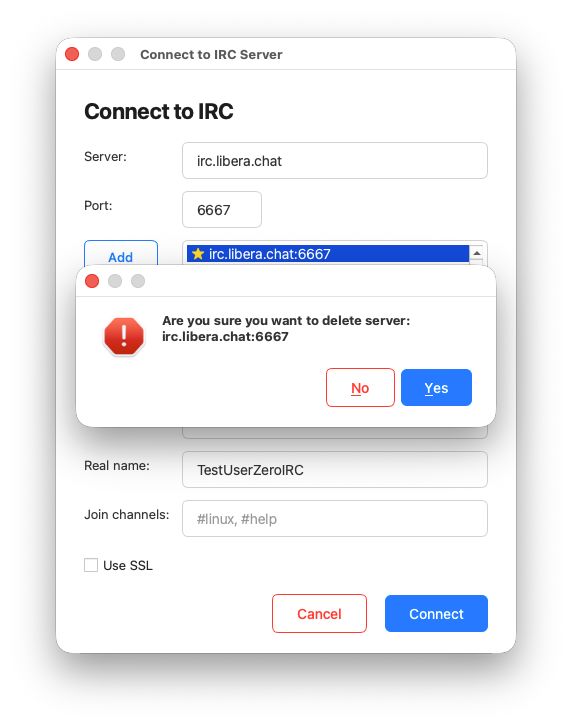
The functionality for deleting an IRC server is extremely simple.
In the Connect to IRC Server window, simply select the server and click the Delete button.
The Delete button is intentionally highlighted in red in the interface.
Let's move on to the main functionality of the ZeroIRC app when actively connected to a server.
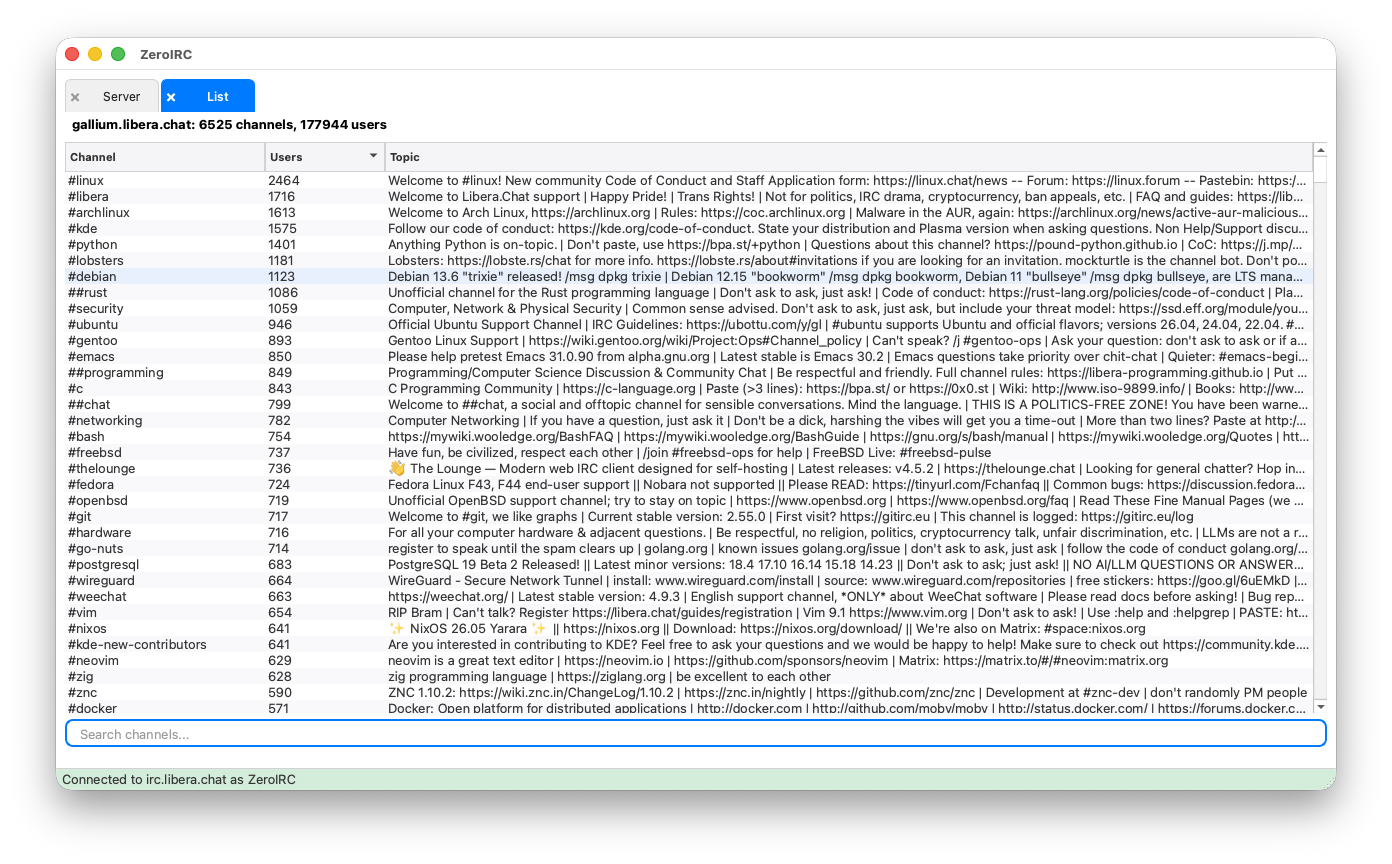
In ZeroIRC 2.0, connection stability to the IRC server has been improved, and a reconnection feature has been added in case of connection loss or if the computer goes into sleep mode. Parsing of IRC server channels when using the /list command has also been improved. The app's architecture has been split into two threads. The first thread handles server messages, while the second thread processes user messages. This is, of course, not enough, so in future versions of ZeroIRC, we will focus primarily on further thread separation. These architectural changes will help increase the speed and security of the app.
In ZeroIRC 2.0, we've added a full-featured channel topic editor for channel operators, which includes essential text editing capabilities: bold, italic, underline, the ability to choose the topic text color and background color, and, of course, we've added the ability to insert emojis into the topic.
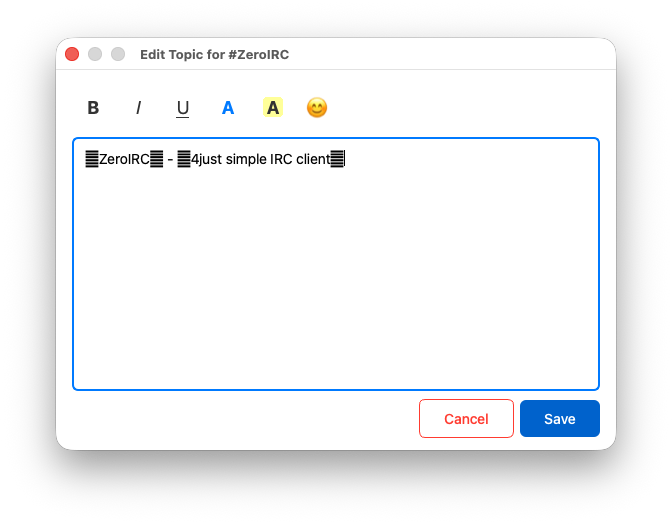
A simple topic edit produces this result, but the functionality is much more extensive and will be further refined in future releases.
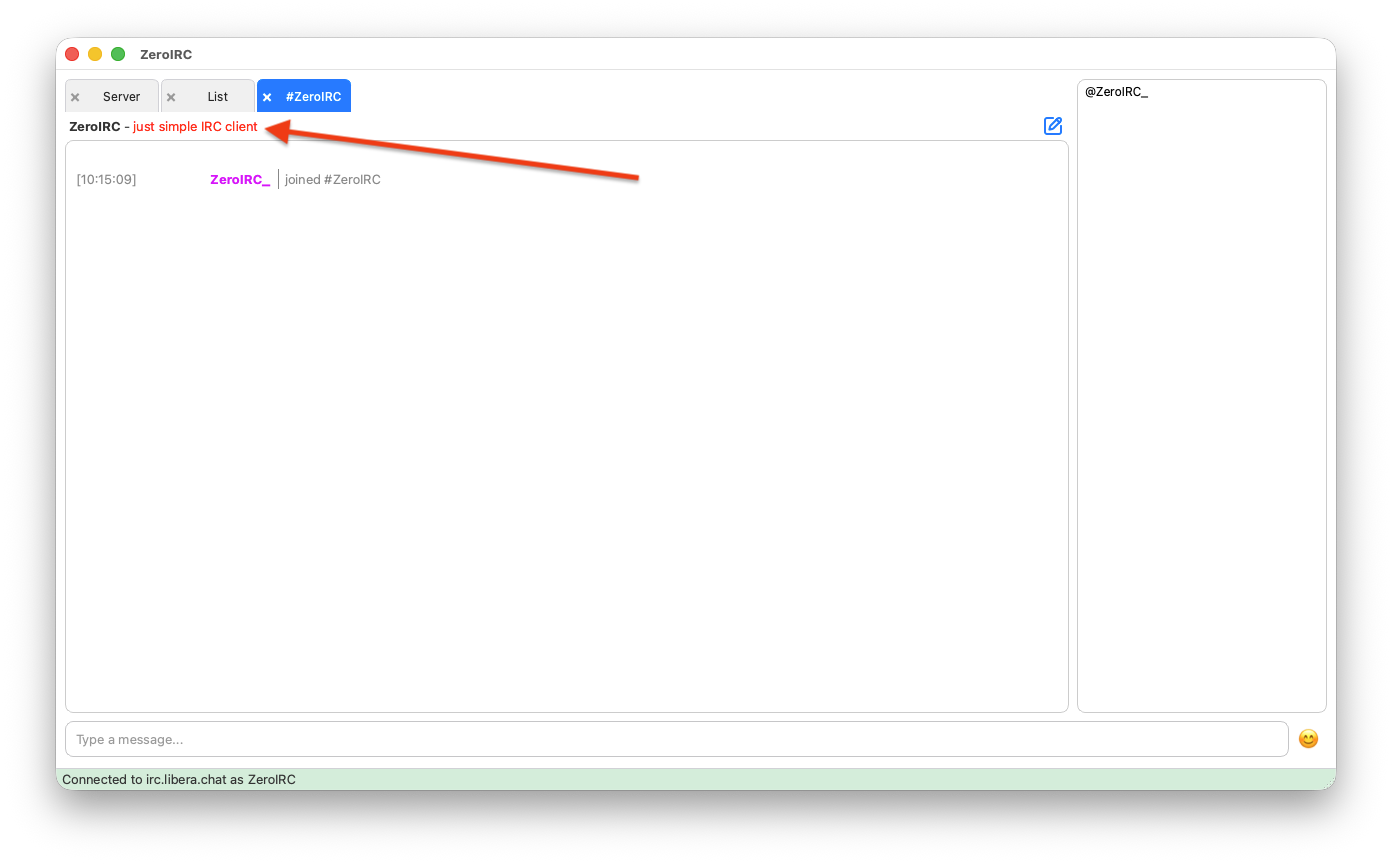
In ZeroIRC 2.0 Monte Carlo, we have added a settings window for customizing the app's interface and editing other preferences. Let's take a closer look at this functionality. When the user selects Settings/Preferences from the main menu, the settings window appears with the Interface tab selected by default. Here, the user can change the chat font, choose the time format, adjust the emoji size, and change the chat background.
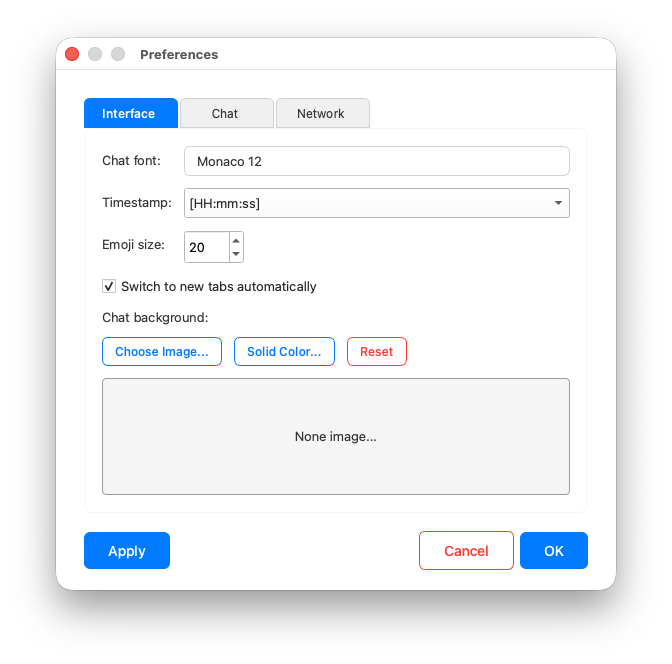
Let's take a look at the key changes.
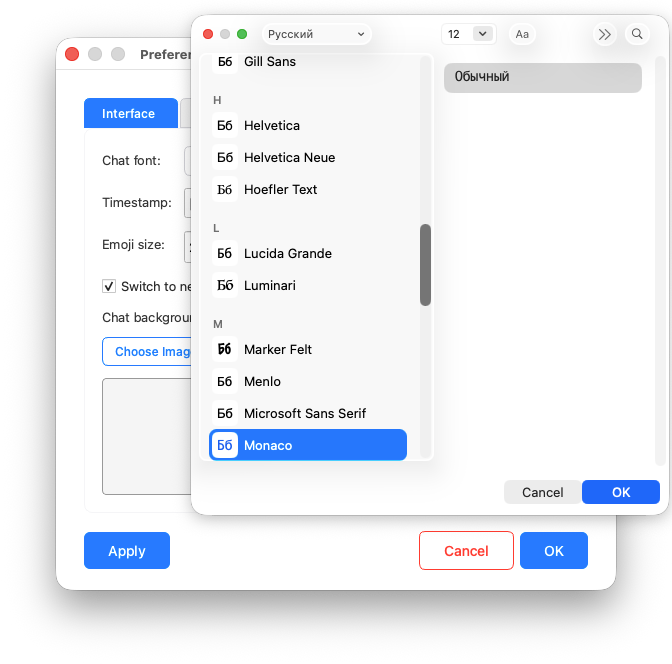
Changing the chat font: In this version, ZeroIRC 2.0 Monte Carlo uses the Monaco font by default, though the font will most likely change in future versions. That said, you can choose any available suitable font.
The Timestamp option in the Preferences window lets you choose the time format that will be displayed in the chat.
Let's take a look at the functionality for setting a background image for the app's chat or changing the background color.
You can select a background image from your local computer's disk. The result will look like this:
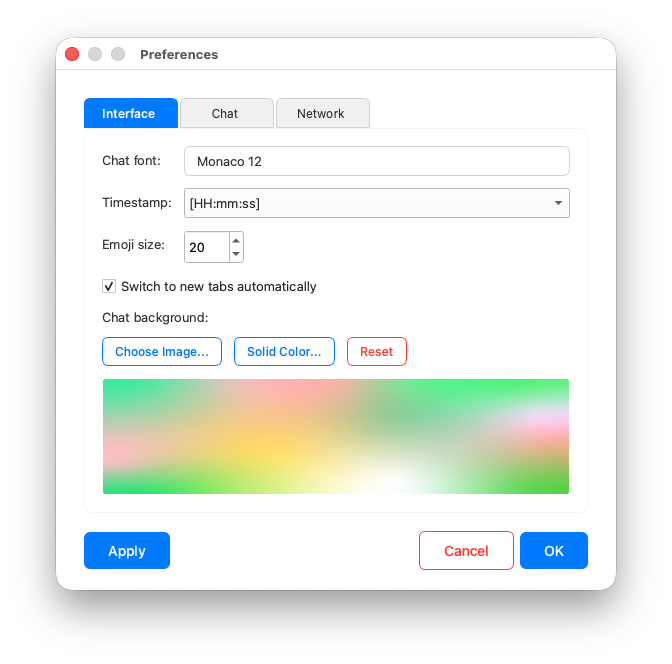
Clicking the Apply button applies the background to the app's chat.
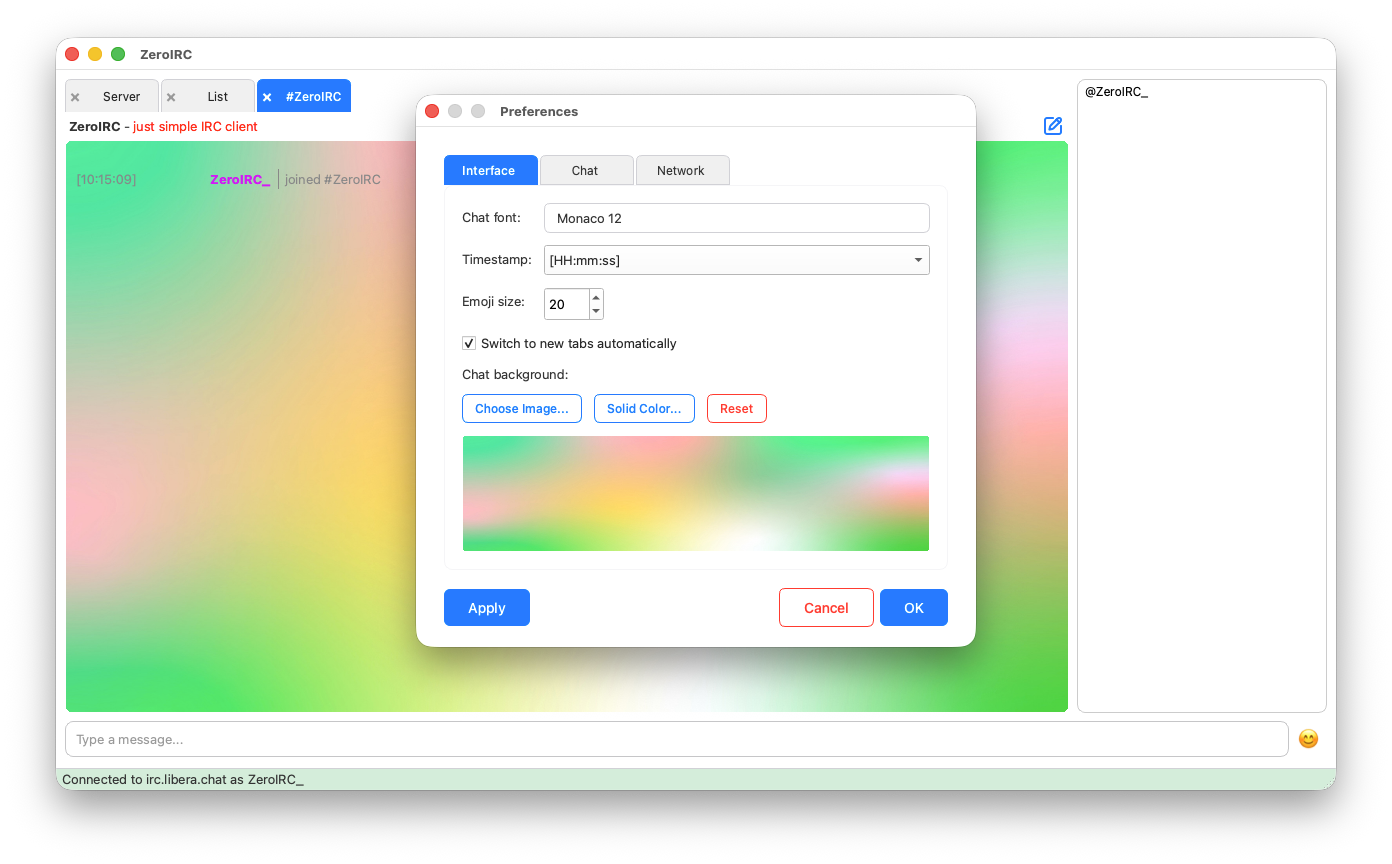
The chat background shown here was chosen completely at random, users can set a suitable background on their own.
We follow the same steps if we want to set a solid background color for the chat. To do this, in the Preferences window, under the Interface tab, click the Solid Color... button. In the color palette that opens, choose your favorite color.
We follow the same steps if we want to set a solid background color for the chat. To do this, in the Preferences window, under the Interface tab, click the Solid Color... button. In the color palette that opens, choose your favorite color.
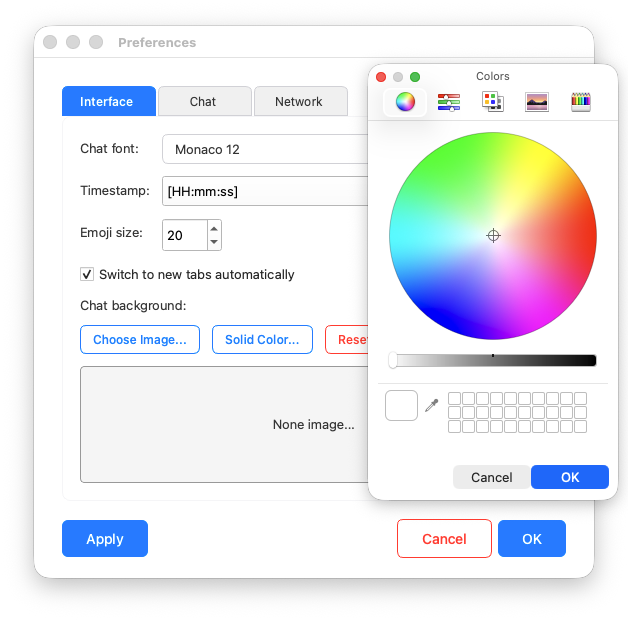
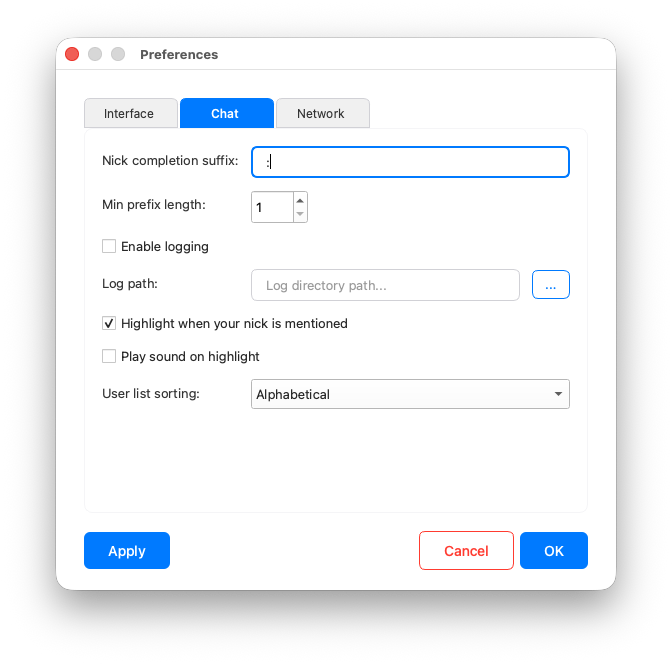
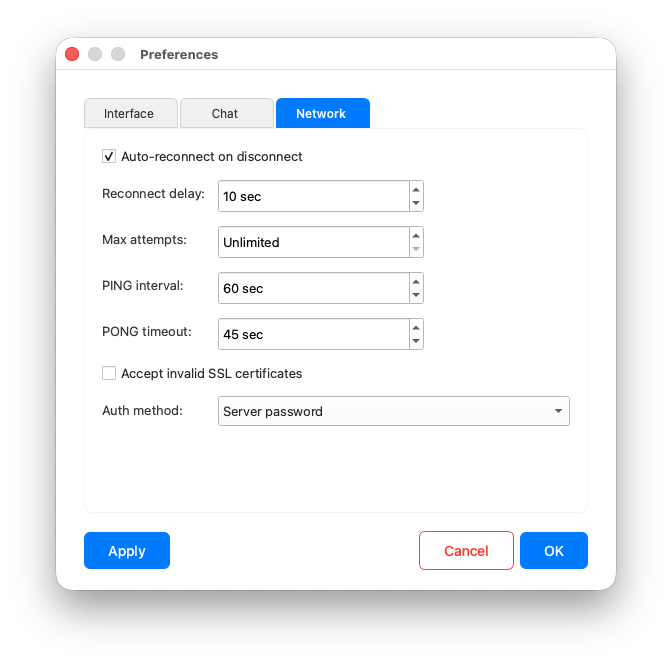
The Preferences window tabs contain a classic set of settings where you can configure logging and a standard server ping. We won't dwell on them.
In the ZeroIRC 2.0 Monte Carlo release, many more improvements were made, but they are "under the hood" and not visible to the average user. But the ZeroIRC app continues to evolve, and we still have plenty of ideas to implement! Stay with us, stay connected!
💬 ZeroIRC Community
Discuss development, suggest ideas, get help or just hang out — join our Telegram channel.
Join on Telegram